Restyling the Focuslist widget
To add the focuslist widget to your stream (after adding the Croccyfocus bot), use the command !focuslist in your channel to see your unique browser source link. Then create a new browser source on OBS (or your streaming software of choice), using that link.
We recommend a browser source width of at least 400 and a height of around 300 to 500 depending on expected usage. The list will scroll if there are too many users to display in the given height.
The resulting widget will show all the hyperfocused users currently active in your stream, and how long they have remaining in their session.
This page describes how to re-style this widget so that it visually blends in with your stream layout.
(NB: Unlike most settings, the preview in OBS does not update the Custom CSS when you press "Refresh Cache". Thus, when you perform changes to the style as described below, you need to press OK to close the settings window and apply the changes.)
To simplify testing while restyling, you can change the community=n value in the browser source URL to community=testing to display some fake users and hyperfocus sessions! Remember to change it back afterwards though!
Default Style
In the source properties for the browser source in OBS, replace the contents of the 'Custom CSS' field with the following:
body {
    background-color: rgba(0, 0, 0, 0);
    margin: 0px auto;
    overflow: hidden;

	--header-border-color: brown;
	--header-border-width: 2px;
	--header-border-radius: 10px;
	--header-height: 60px;
	--header-font-size: 30px;
	--header-font-color: white;
	--header-background-color: #321;
	--header-padding: 10px;

    --username-max-width: 100%;

	--task-font-size: 25px;
	--task-font-color: white;
	--task-background-color: rgba(0, 0, 0, 0.5);
	--task-border-color: black;
	--task-border-width: 0px;
	--task-border-radius: 5px;
	--task-margin-bottom: 5px;
	--task-padding: 10px;
	--task-max-width: 100%;

}

.username {
  color: pink !important
}
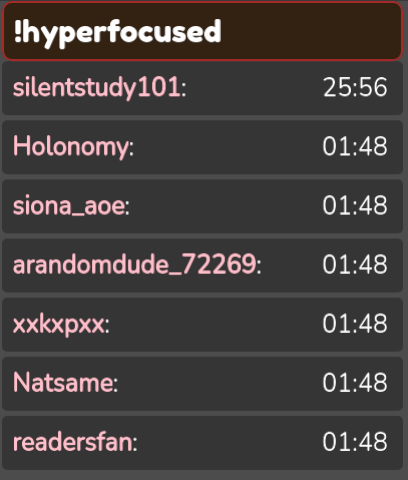
This is the default style, and should not change the appearance of the widget when you reload.
Adjusting the style
Each line in the Custom CSS field controls a styling variable for the widget.
The header variables refer to the rounded brown box on top of the list which by default say !hyperfocused.
The task variables refer to the rows that each user occupies.
The color variable in username allows modification of the username colour in those rows.
See https://cssreference.io/property/color/ for a quick guide on the values accepted for the 'color' variables.
Otherwise, I suggest you play around with the values and see what suits your style best!
An example
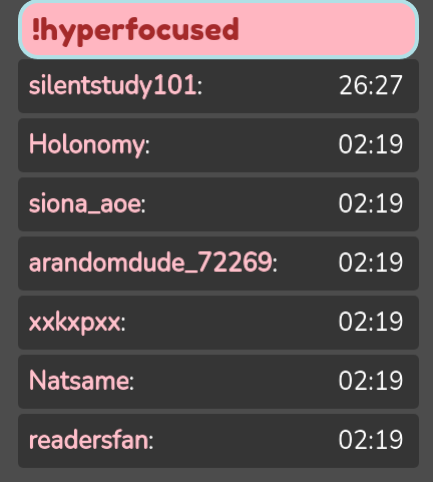
Modifying the 'header' part of the CSS as follows results in the below example.
	--header-border-color: powderblue;
	--header-border-width: 4px;
	--header-border-radius: 20px;
	--header-height: 60px;
	--header-font-size: 30px;
	--header-font-color: brown;
	--header-background-color: lightpink;
	--header-padding: 10px;
For advanced users
If you are comfortable working with CSS and JS (or are feeling adventurous and want to learn), the focuslist widget is opensource and available here: https://git.thewisewolf.dev/HoloTech/hyperfocus-widget
If you download or clone it locally, it should work in exactly the same way as the hosted widget, and you can modify the text, styles, and behaviour to your heart's content.
A new v1 widget will eventually be written, with clearer variable names and a simpler dynamic configuration interface.